> ## Documentation Index
> Fetch the complete documentation index at: https://docs.open-hive.com/llms.txt
> Use this file to discover all available pages before exploring further.
# Automation: run and supervise work
> Use Scheduler, Notifications, Cloud, and Workers without confusing their controls.
Choose **Automation** inside a colony. Its four sections handle different parts of running and supervising work.
| Section | Question it answers | Main action |
| ----------------- | ------------------------------------------ | ----------------------------------- |
| **Scheduler** | When should this colony run again? | Create or stop a trigger. |
| **Notifications** | How should it reach me when it needs help? | Set up an alert destination. |
| **Cloud** | Where does the colony run? | Deploy to or open a cloud computer. |
| **Workers** | What delegated work is happening? | Inspect or stop workers. |
Screenshots show the desktop interface with fictional example data. Names, messages, counts, and connection states are illustrative, not account defaults or evidence of live activity.
 ## Scheduler: arrange future runs
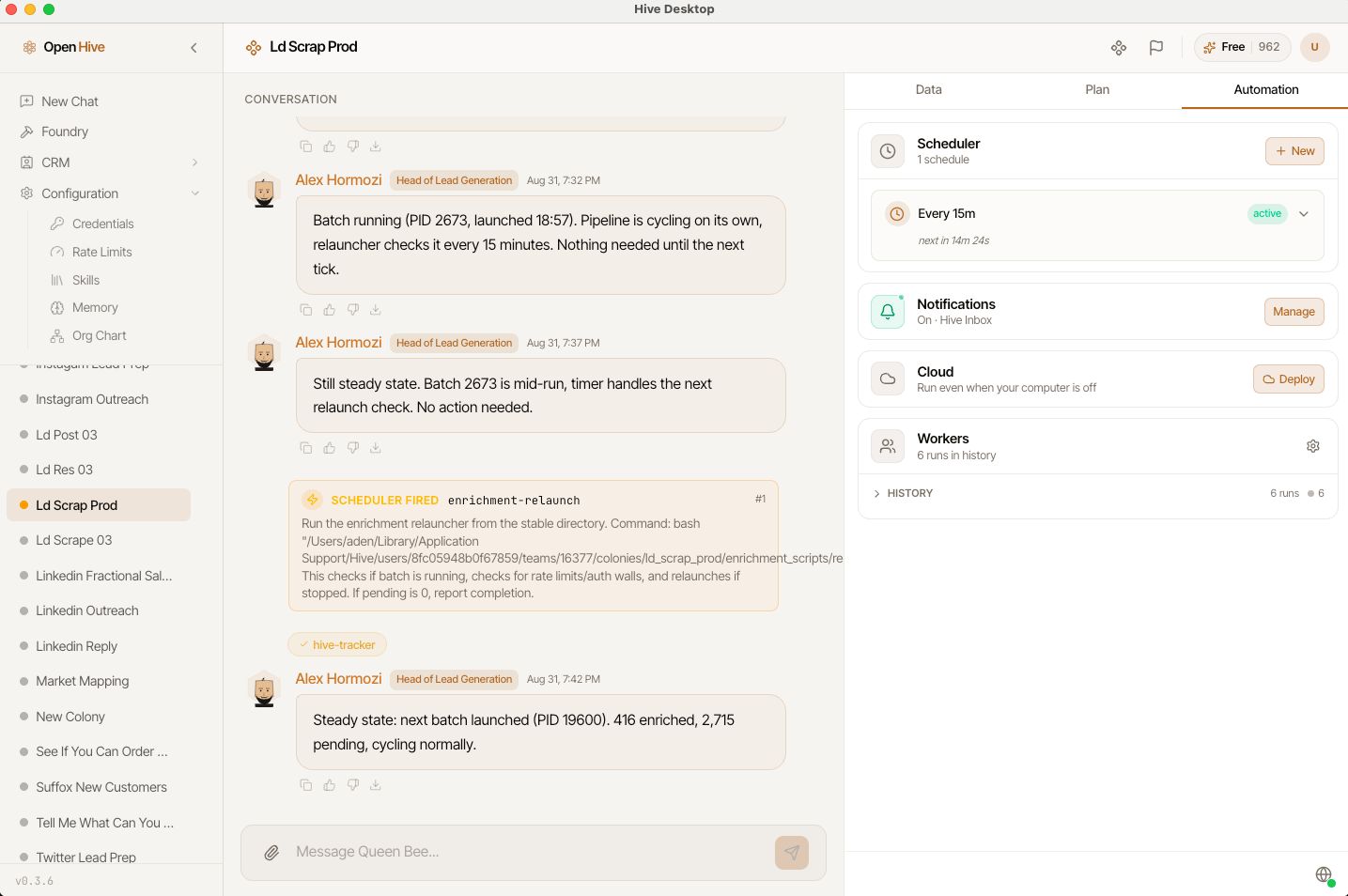
Use **New** to create a schedule for the colony. Review the schedule's next fire time and state after saving. **Force Run** invokes the trigger now; **Stop trigger** disables future invocations, and **Start trigger** re-enables it.
Read [Scheduling](/guides/scheduling) for daily, weekly, interval, and advanced cron behavior, time zones, and local-machine requirements.
Stopping a current worker does not disable a recurring trigger.
## Notifications: hear when the colony needs you
Choose **Set up**, or **Manage** for an existing configuration. Notifications can use a supported Telegram or Slack destination.
1. Connect or select the channel and destination.
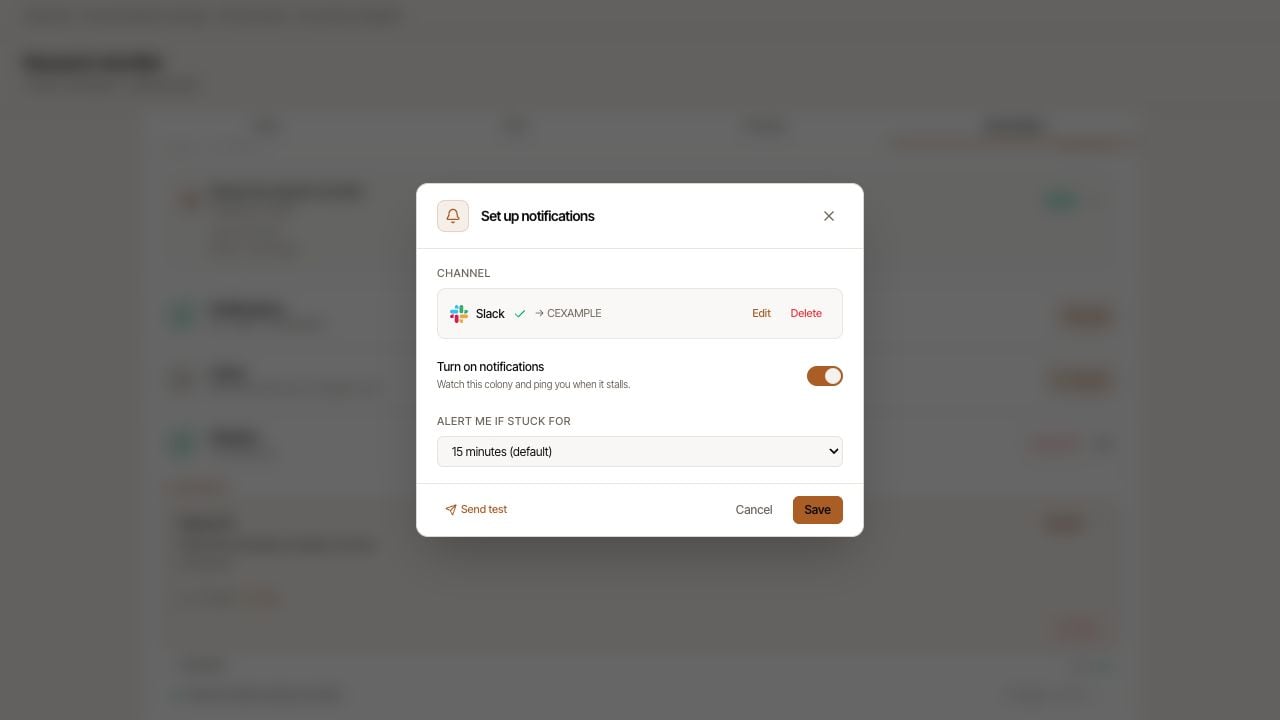
2. Review **Allowed repliers**. These are the user IDs allowed to drive the colony through replies; do not add people casually.
3. Enable alerts for this colony.
4. Set **Alert me if stuck for** to the available delay you want.
5. Finish the setup and check that the section shows **On** with the intended destination.
The setup can guide you through connecting a Telegram bot or Slack app. Agent-assisted setup may involve browser actions, credentials, and a test message; review what you are authorizing before starting it.
A connected messaging account alone is not the same as alerts being enabled for this colony. If alerts do not arrive, check the destination, enabled state, and channel setup errors.
## Scheduler: arrange future runs
Use **New** to create a schedule for the colony. Review the schedule's next fire time and state after saving. **Force Run** invokes the trigger now; **Stop trigger** disables future invocations, and **Start trigger** re-enables it.
Read [Scheduling](/guides/scheduling) for daily, weekly, interval, and advanced cron behavior, time zones, and local-machine requirements.
Stopping a current worker does not disable a recurring trigger.
## Notifications: hear when the colony needs you
Choose **Set up**, or **Manage** for an existing configuration. Notifications can use a supported Telegram or Slack destination.
1. Connect or select the channel and destination.
2. Review **Allowed repliers**. These are the user IDs allowed to drive the colony through replies; do not add people casually.
3. Enable alerts for this colony.
4. Set **Alert me if stuck for** to the available delay you want.
5. Finish the setup and check that the section shows **On** with the intended destination.
The setup can guide you through connecting a Telegram bot or Slack app. Agent-assisted setup may involve browser actions, credentials, and a test message; review what you are authorizing before starting it.
A connected messaging account alone is not the same as alerts being enabled for this colony. If alerts do not arrive, check the destination, enabled state, and channel setup errors.
 ## Cloud: choose where the work runs
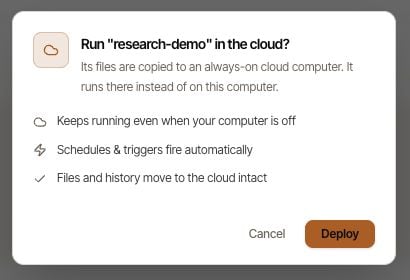
Use Cloud to deploy the colony to a cloud computer or open an existing deployment. Read the confirmation before changing where it runs.
Cloud deployment and scheduling are separate decisions. A schedule does not automatically deploy a local colony, and local execution depends on your app and computer remaining available.
See [Local and cloud](/guides/local-and-cloud) for deployment and moving back to local execution.
## Cloud: choose where the work runs
Use Cloud to deploy the colony to a cloud computer or open an existing deployment. Read the confirmation before changing where it runs.
Cloud deployment and scheduling are separate decisions. A schedule does not automatically deploy a local colony, and local execution depends on your app and computer remaining available.
See [Local and cloud](/guides/local-and-cloud) for deployment and moving back to local execution.
 ## Workers: inspect delegated execution
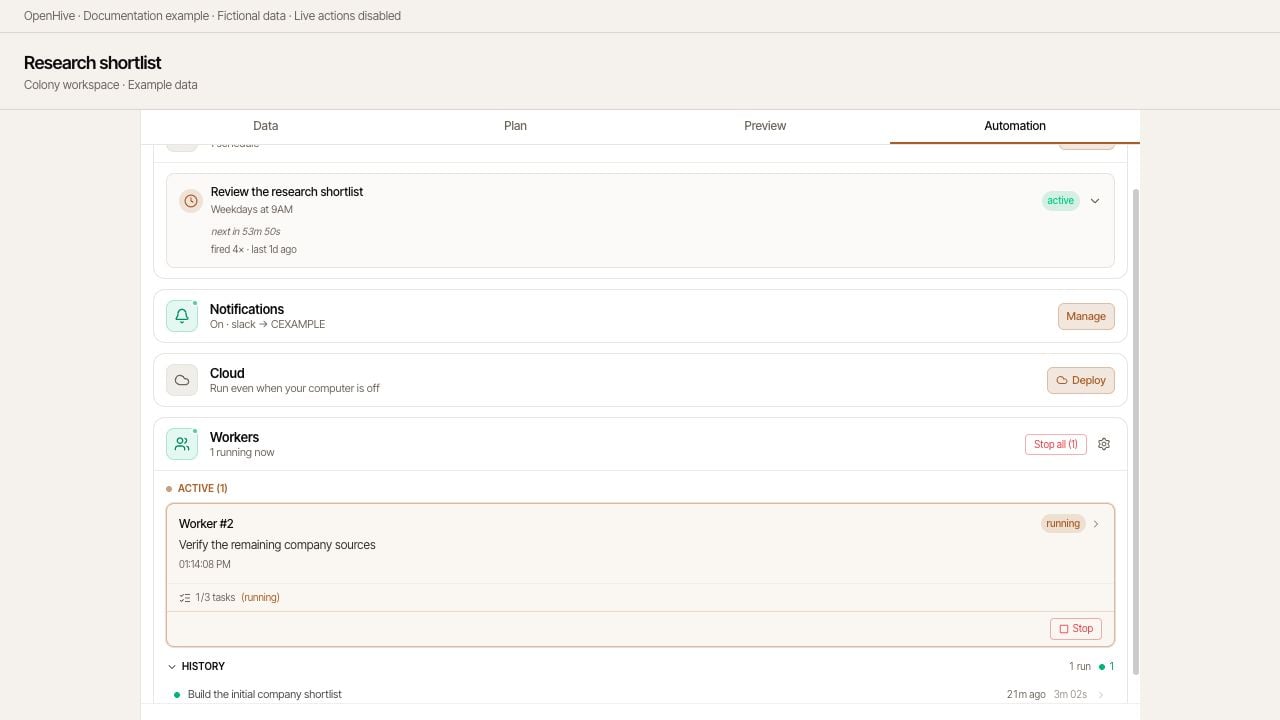
Workers carry out tasks delegated by the queen. The active list shows ongoing work; **History** shows previous workers and their outcomes. Expand the history or show more entries when needed.
Select a worker to inspect its goal, task, timing, results, and available transcript. Use **All workers** to return. **Skills & tools** opens the worker capabilities view.
If a result is unexpected, compare the worker's instructions with its tool activity and reported result. A failed worker does not necessarily mean the entire colony failed; the queen may have other work or a recovery path.
## Workers: inspect delegated execution
Workers carry out tasks delegated by the queen. The active list shows ongoing work; **History** shows previous workers and their outcomes. Expand the history or show more entries when needed.
Select a worker to inspect its goal, task, timing, results, and available transcript. Use **All workers** to return. **Skills & tools** opens the worker capabilities view.
If a result is unexpected, compare the worker's instructions with its tool activity and reported result. A failed worker does not necessarily mean the entire colony failed; the queen may have other work or a recovery path.
 ### Stop the right thing
**Stop this worker** interrupts one worker. **Stop all** interrupts the active workers listed in this section. Neither action undoes external changes already completed, and neither disables future scheduled triggers.
Use the colony's running control to pause colony execution, and **Stop trigger** for a schedule you no longer want. These are different controls with different scopes.
### Stop the right thing
**Stop this worker** interrupts one worker. **Stop all** interrupts the active workers listed in this section. Neither action undoes external changes already completed, and neither disables future scheduled triggers.
Use the colony's running control to pause colony execution, and **Stop trigger** for a schedule you no longer want. These are different controls with different scopes.