> ## Documentation Index
> Fetch the complete documentation index at: https://docs.open-hive.com/llms.txt
> Use this file to discover all available pages before exploring further.
# Data: inspect and export results
> Find colony tables, understand updates, sort results, and export a complete CSV.
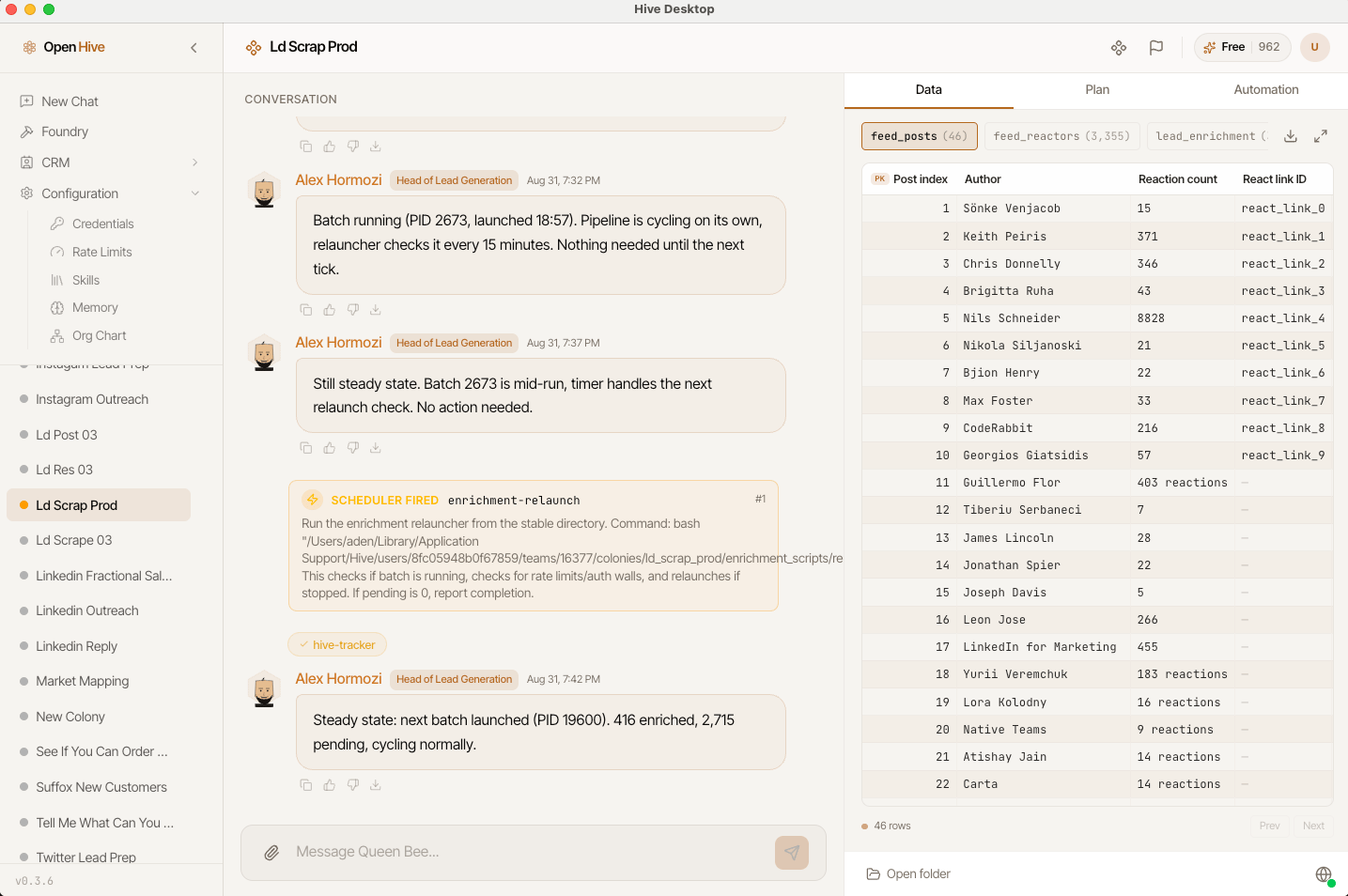
Open a colony and choose **Data** in its side panel. This is the default tab: it shows structured tables saved for that colony, not every answer in chat and not the shared CRM.
Screenshots show the desktop interface with fictional example data. Names, messages, counts, and connection states are illustrative, not account defaults or evidence of live activity.
## Find the right table
Select a table chip to view its rows. Chips show row counts; hover for additional table information. Drag table chips to arrange them in an order that suits your workflow.
If you see **No data recorded yet**, the agent may not have saved a table. Be explicit about the output:
```text theme={null}
Save the research in a colony table named prospects with columns:
company, website, source_url, fit_reason, and verification_status.
Keep unknown values empty rather than guessing.
```
If you intended to update shared customer records, ask for [CRM](/guides/crm) instead. Saving a colony table does not itself mean CRM records were updated
 ## Read and organize the grid
* Select a column's sorting controls to change the displayed order.
* Reorder columns to put the most useful fields first.
* Use **Prev** and **Next** to navigate tables larger than one page. The grid displays up to 100 rows per page.
* Choose **Expand view** for more room. Use **Exit expanded view** or Escape to return.
The desktop remembers table selection and layout preferences for the colony.
The Data grid is currently read-only. To correct a value, give the agent a precise instruction identifying the table, row, and change. Rearranging or sorting the grid does not edit the underlying records.
## Read and organize the grid
* Select a column's sorting controls to change the displayed order.
* Reorder columns to put the most useful fields first.
* Use **Prev** and **Next** to navigate tables larger than one page. The grid displays up to 100 rows per page.
* Choose **Expand view** for more room. Use **Exit expanded view** or Escape to return.
The desktop remembers table selection and layout preferences for the colony.
The Data grid is currently read-only. To correct a value, give the agent a precise instruction identifying the table, row, and change. Rearranging or sorting the grid does not edit the underlying records.
 ## Understand update badges
Tables refresh while the Data view is visible. A badge can draw attention to rows changed since you last viewed a table. Where detailed change tracking is unavailable, the badge reflects growth in the row count instead.
Selecting a table clears its attention badge; tracked changed rows are highlighted briefly. These indicators help you find updates, but are not an audit log or proof that every field is correct.
## Export a table
1. Select the table you want.
2. Choose **Download table as CSV**.
3. Pick a destination in the save dialog.
4. Open the saved file and check its columns and row count.
The export includes all rows in the selected table, not just the current page. Do not assume the CSV preserves your on-screen sort or column arrangement. If saving fails, read the error and retry after resolving it.
For a local colony, **Open folder** opens its workspace files. This control is disabled for cloud colonies because their folder is not on this computer; see [Local and cloud](/guides/local-and-cloud).
## Verify before using the result
Spot-check sources, duplicate records, missing values, and any computed totals. A completed [Plan](/colony/plan) task means work was marked done; it does not independently validate the data.
## Understand update badges
Tables refresh while the Data view is visible. A badge can draw attention to rows changed since you last viewed a table. Where detailed change tracking is unavailable, the badge reflects growth in the row count instead.
Selecting a table clears its attention badge; tracked changed rows are highlighted briefly. These indicators help you find updates, but are not an audit log or proof that every field is correct.
## Export a table
1. Select the table you want.
2. Choose **Download table as CSV**.
3. Pick a destination in the save dialog.
4. Open the saved file and check its columns and row count.
The export includes all rows in the selected table, not just the current page. Do not assume the CSV preserves your on-screen sort or column arrangement. If saving fails, read the error and retry after resolving it.
For a local colony, **Open folder** opens its workspace files. This control is disabled for cloud colonies because their folder is not on this computer; see [Local and cloud](/guides/local-and-cloud).
## Verify before using the result
Spot-check sources, duplicate records, missing values, and any computed totals. A completed [Plan](/colony/plan) task means work was marked done; it does not independently validate the data.