> ## Documentation Index
> Fetch the complete documentation index at: https://docs.open-hive.com/llms.txt
> Use this file to discover all available pages before exploring further.
# Local and cloud work
> Choose where a colony runs and verify its environment before leaving it unattended.
OpenHive can execute a colony on your computer or on a cloud computer. Choose based on where the task's files, browser session, and connected services are available.
| | Local execution | Cloud execution |
| --------------- | ---------------------------------------------- | ------------------------------------------------------ |
| Where work runs | The runtime started by the desktop app | A cloud computer after deployment |
| Your computer | Keep it awake, connected, and running OpenHive | The colony can run while your computer is off |
| Browser access | Your connected local browser bridge | Check the browser and sign-in state in the cloud view |
| How to inspect | Colony chat and workspace | Colony status and the Cloud section's **Open** control |
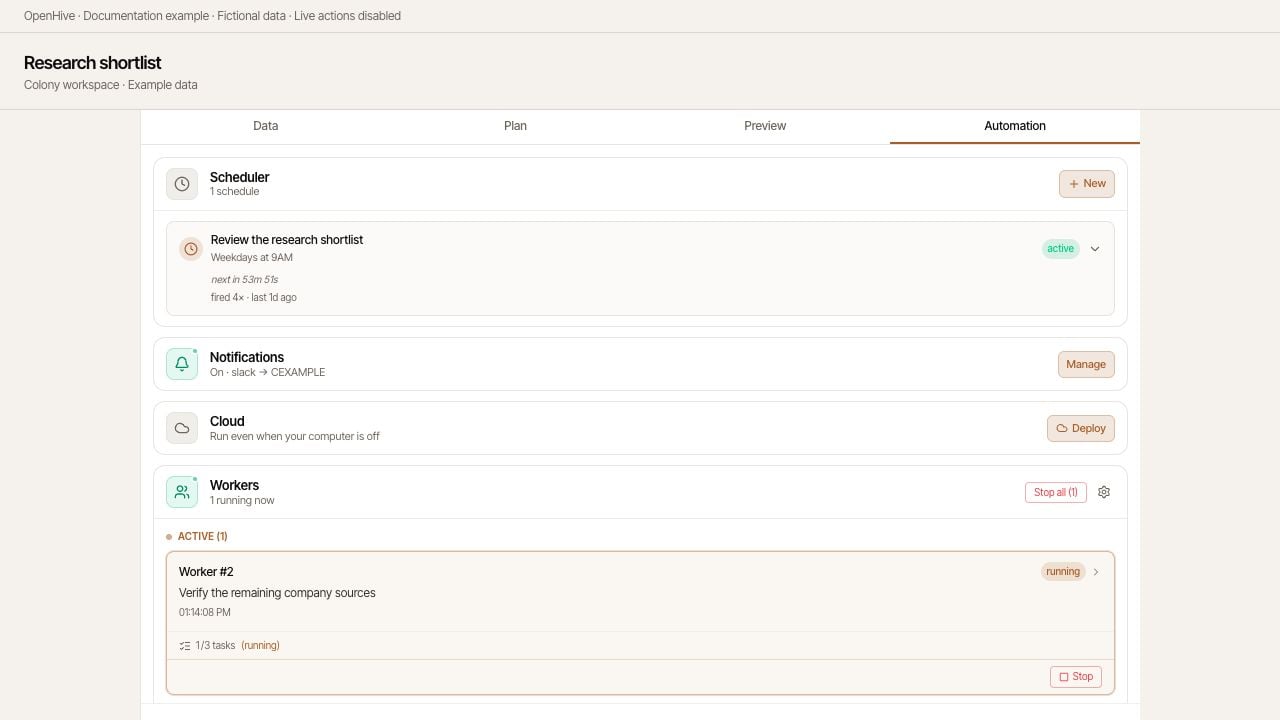
Screenshots show the desktop interface with fictional example data. Names, messages, counts, and connection states are illustrative, not account defaults or evidence of live activity.
 ## Deploy a colony
1. Run a small task locally and confirm its output.
2. Open the colony's **Automation** tab.
3. In **Cloud**, select **Deploy**.
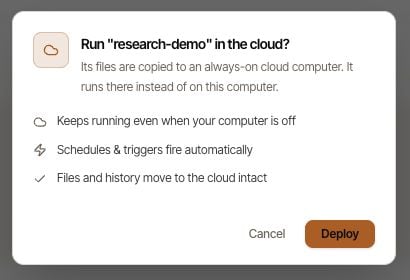
4. Read the confirmation dialog and confirm the deployment when you are ready.
5. Wait for upload and deployment to finish. Check that the section reports **Running on a cloud computer**.
6. Choose **Open** to inspect the cloud environment.
Resolve deployment errors before relying on the colony to continue unattended. The availability of cloud computers and upgrades depends on the options offered to your account.
## Deploy a colony
1. Run a small task locally and confirm its output.
2. Open the colony's **Automation** tab.
3. In **Cloud**, select **Deploy**.
4. Read the confirmation dialog and confirm the deployment when you are ready.
5. Wait for upload and deployment to finish. Check that the section reports **Running on a cloud computer**.
6. Choose **Open** to inspect the cloud environment.
Resolve deployment errors before relying on the colony to continue unattended. The availability of cloud computers and upgrades depends on the options offered to your account.
 ## Check access after deployment
A cloud computer is a separate execution environment. Check that the task can access its required files, connected accounts, and browser pages there. Do not assume a website signed in on your laptop is also signed in on the cloud computer.
Start with a small verification task before enabling a recurring workflow. For browser automation, inspect the cloud browser directly when login or an interactive step is needed.
## Move work back to your computer
The **Cloud** section exposes advanced controls, including moving the colony back to local execution. After moving it back, keep the desktop runtime available and verify the next run locally.
## Understand the data boundary
Desktop execution does not make OpenHive an offline-only product. Cloud services handle account and workspace functions; connected-account credentials can sync to the local runtime; model providers and third-party tools receive the inputs needed to fulfill requests.
Choose the connected account deliberately, and keep private information out of a task when it is not needed. For access setup, see [Credentials](/configuration/credentials).
## Check access after deployment
A cloud computer is a separate execution environment. Check that the task can access its required files, connected accounts, and browser pages there. Do not assume a website signed in on your laptop is also signed in on the cloud computer.
Start with a small verification task before enabling a recurring workflow. For browser automation, inspect the cloud browser directly when login or an interactive step is needed.
## Move work back to your computer
The **Cloud** section exposes advanced controls, including moving the colony back to local execution. After moving it back, keep the desktop runtime available and verify the next run locally.
## Understand the data boundary
Desktop execution does not make OpenHive an offline-only product. Cloud services handle account and workspace functions; connected-account credentials can sync to the local runtime; model providers and third-party tools receive the inputs needed to fulfill requests.
Choose the connected account deliberately, and keep private information out of a task when it is not needed. For access setup, see [Credentials](/configuration/credentials).