> ## Documentation Index
> Fetch the complete documentation index at: https://docs.open-hive.com/llms.txt
> Use this file to discover all available pages before exploring further.
# Schedule recurring work
> Create daily, weekly, interval, or UTC cron schedules and verify each run.
Use a schedule after you have run the task successfully once. A schedule repeats an instruction; it does not establish that the task's data, credentials, or output are correct.
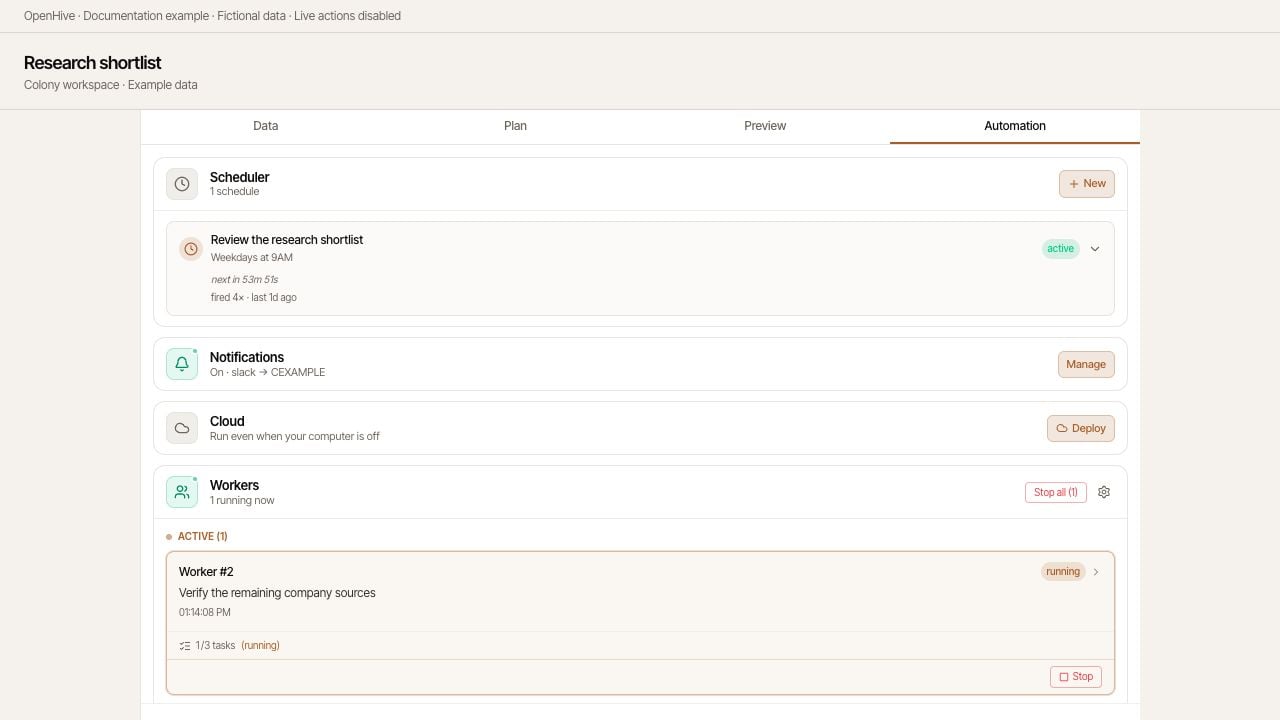
Screenshots show the desktop interface with fictional example data. Names, messages, counts, and connection states are illustrative, not account defaults or evidence of live activity.
 ## Create a schedule
1. Open the colony and go to **Automation**.
2. In **Scheduler**, select **New**. The colony needs a session before this control is available.
3. Enter a descriptive name, such as **Weekday competitor news check**.
4. Choose the schedule type and timing.
5. In **Task**, write the instruction to run each time.
6. Check the timing preview, then choose **Create schedule**.
| Type | How to set it |
| ------------ | ------------------------------------------------------------------------------------------------------------------ |
| **Daily** | Choose a time using your computer's local time. |
| **Weekly** | Choose weekdays and a local time. At least one day is required. |
| **Interval** | Enter a positive interval in minutes or hours. The preview notes that the first run starts shortly after creation. |
| **Advanced** | Enter a five-field cron expression interpreted in UTC: minute, hour, day, month, weekday. |
For example, `0 9 * * 1-5` means 09:00 UTC Monday through Friday. It does not mean 09:00 in your local time zone.
Daily and weekly times are converted to UTC when created. If your time zone or daylight-saving offset changes, check the schedule again and recreate it if necessary to preserve the intended local time.
## Create a schedule
1. Open the colony and go to **Automation**.
2. In **Scheduler**, select **New**. The colony needs a session before this control is available.
3. Enter a descriptive name, such as **Weekday competitor news check**.
4. Choose the schedule type and timing.
5. In **Task**, write the instruction to run each time.
6. Check the timing preview, then choose **Create schedule**.
| Type | How to set it |
| ------------ | ------------------------------------------------------------------------------------------------------------------ |
| **Daily** | Choose a time using your computer's local time. |
| **Weekly** | Choose weekdays and a local time. At least one day is required. |
| **Interval** | Enter a positive interval in minutes or hours. The preview notes that the first run starts shortly after creation. |
| **Advanced** | Enter a five-field cron expression interpreted in UTC: minute, hour, day, month, weekday. |
For example, `0 9 * * 1-5` means 09:00 UTC Monday through Friday. It does not mean 09:00 in your local time zone.
Daily and weekly times are converted to UTC when created. If your time zone or daylight-saving offset changes, check the schedule again and recreate it if necessary to preserve the intended local time.
 ## Give each run a complete instruction
```text theme={null}
Check the three competitor news pages already listed in this colony.
Find announcements published since the last successful check.
Save new items with company, date, summary, and source URL.
Skip URLs already in the table. Report what changed and any failures.
Do not send messages or change external records.
```
Include the scope, how to skip duplicates, and what to do if no new work exists. Do not rely on a schedule name to supply instructions missing from **Task**.
## Confirm it actually ran
Expand the schedule in **Scheduler**. Inspect **Next fire**, **Last fire**, and the fire count where available. Then check the colony's chat, workers, and output. A trigger firing means execution was requested, not that the task succeeded.
**Force Run** invokes the task immediately without waiting for its scheduled time. It performs real work, so use it only when another run is intended.
## Stop or restart a schedule
Expand the schedule and choose **Stop trigger** to disable it. Use **Start trigger** to enable it again.
Stopping a trigger controls future invocations. If workers are already executing, inspect and stop that work separately when necessary.
## Does my computer need to stay on?
For local work, keep OpenHive running and your computer awake and connected. A local schedule is not a cloud deployment. Use **Automation → Cloud** when you need the colony to run on a cloud computer, and verify that deployment succeeds.
See [Local and cloud work](/guides/local-and-cloud) for the handoff and browser considerations.
## Give each run a complete instruction
```text theme={null}
Check the three competitor news pages already listed in this colony.
Find announcements published since the last successful check.
Save new items with company, date, summary, and source URL.
Skip URLs already in the table. Report what changed and any failures.
Do not send messages or change external records.
```
Include the scope, how to skip duplicates, and what to do if no new work exists. Do not rely on a schedule name to supply instructions missing from **Task**.
## Confirm it actually ran
Expand the schedule in **Scheduler**. Inspect **Next fire**, **Last fire**, and the fire count where available. Then check the colony's chat, workers, and output. A trigger firing means execution was requested, not that the task succeeded.
**Force Run** invokes the task immediately without waiting for its scheduled time. It performs real work, so use it only when another run is intended.
## Stop or restart a schedule
Expand the schedule and choose **Stop trigger** to disable it. Use **Start trigger** to enable it again.
Stopping a trigger controls future invocations. If workers are already executing, inspect and stop that work separately when necessary.
## Does my computer need to stay on?
For local work, keep OpenHive running and your computer awake and connected. A local schedule is not a cloud deployment. Use **Automation → Cloud** when you need the colony to run on a cloud computer, and verify that deployment succeeds.
See [Local and cloud work](/guides/local-and-cloud) for the handoff and browser considerations.