

Screenshots show the desktop interface with fictional example data. Names, messages, counts, and connection states are illustrative, not account defaults or evidence of live activity.
Chat: give direction and review progress
State the outcome, answer questions, and send corrections in the colony chat. Follow-up instructions should identify what to keep and what to change:
A quiet chat does not always mean nothing is happening: workers may still be running. Check Automation → Workers.
Choose a workspace tab
The panel opens on Data by default and remembers your selected tab for each colony. Drag its left edge to adjust the space available beside chat.
Data: inspect and export results
The Data tab shows tables and data collected for this colony. Select a table to inspect its rows and download it as CSV when needed. If the table you expected is missing, check whether the agent only wrote a response in chat. Ask it to save the result as a table with named columns. Colony data and shared CRM records are different destinations; say which one you want.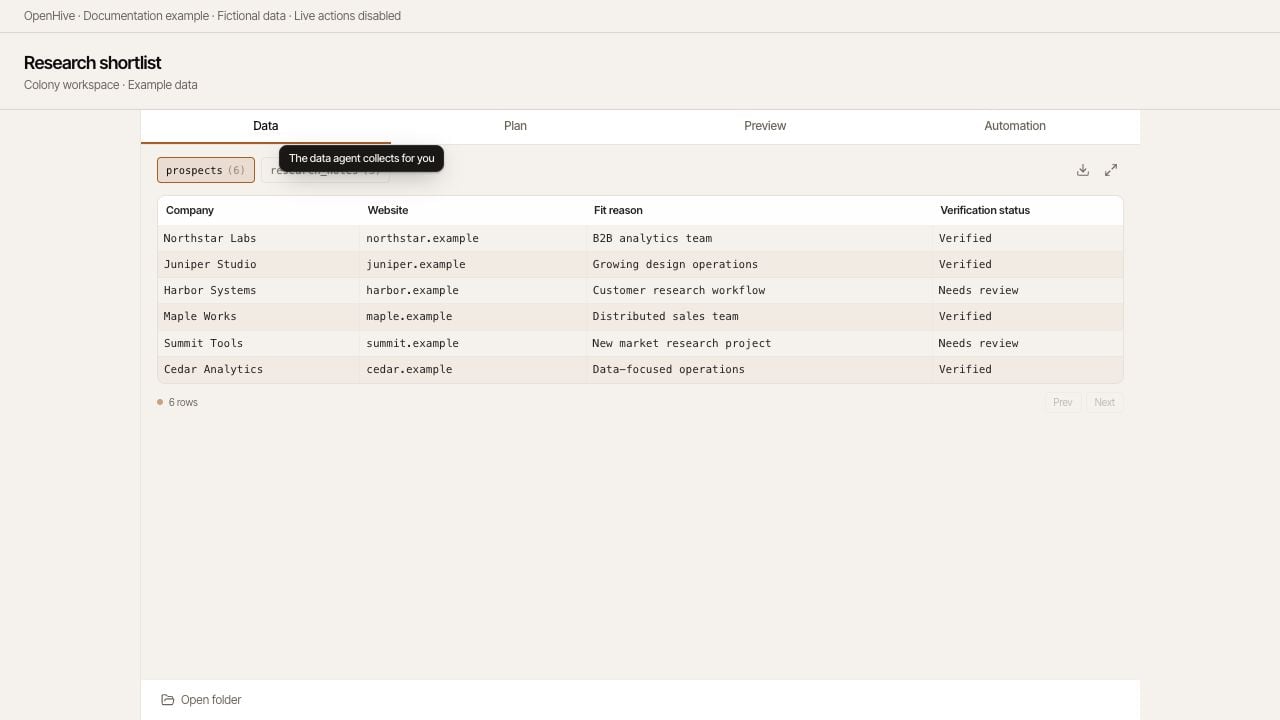
Data displays named tables produced by the colony.
Plan: see what is next
Open Plan for the colony’s task list. Use the plan controls to update it and view History. Completed tasks can be archived and restored. Ask for an update when the task changes substantially: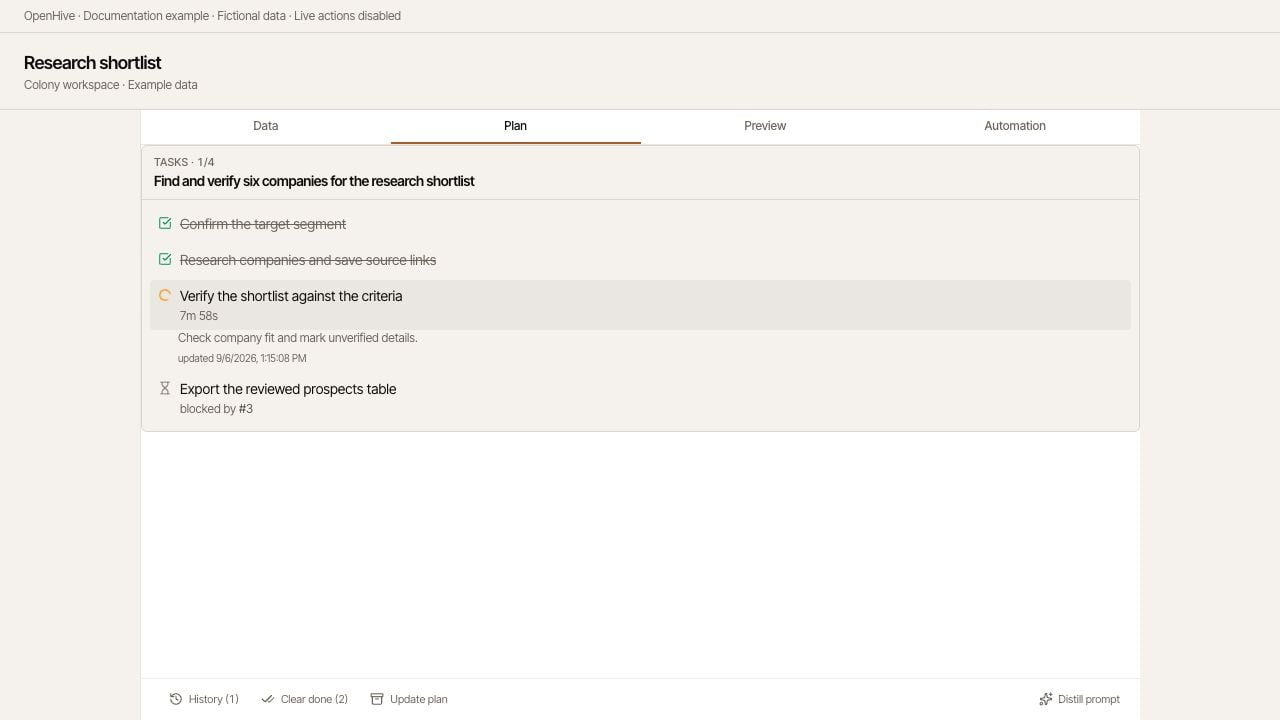
Plan shows example tasks, progress, and a dependency blocker.
Automation: schedules, notifications, cloud, and workers
The Automation tab contains four sections:
A worker transcript helps explain an unexpected result: inspect the inputs, tool activity, and reported outcome before deciding whether to retry. A successful tool call is not, by itself, proof that the business goal was met.
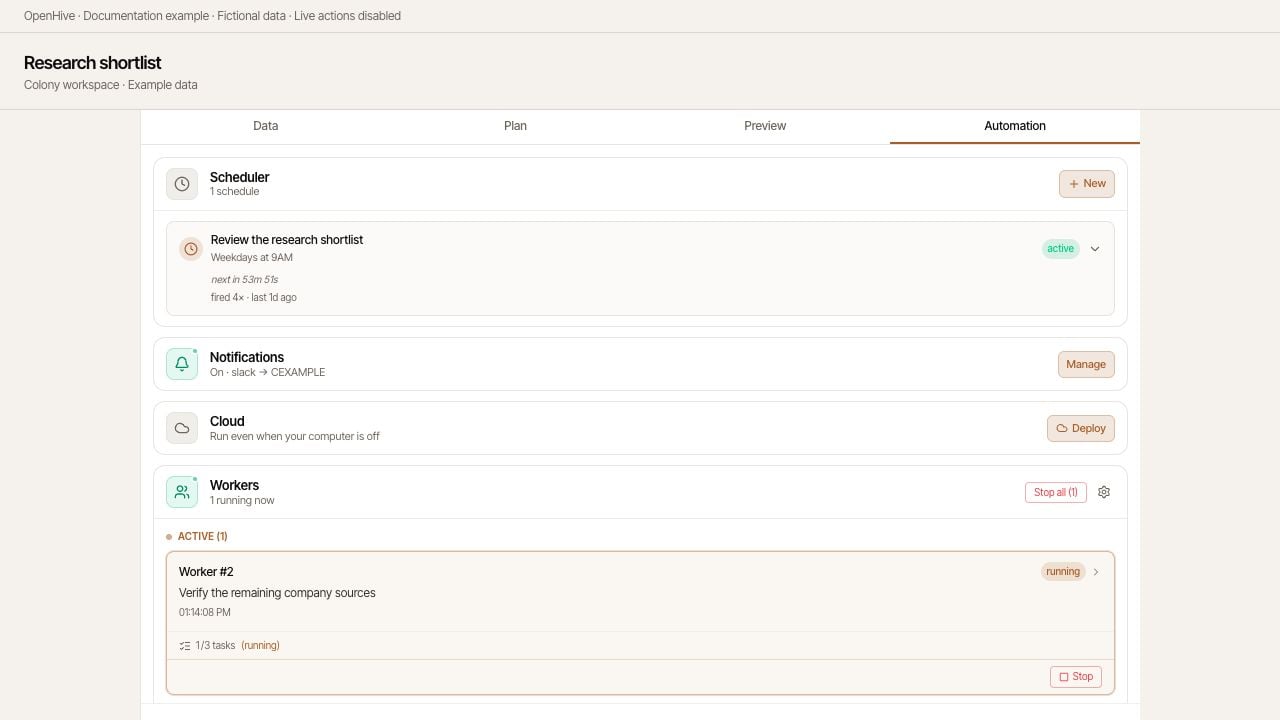
Automation brings schedules, notifications, cloud execution, and workers together.