Choose where a colony runs and verify its environment before leaving it unattended.
OpenHive can execute a colony on your computer or on a cloud computer. Choose based on where the task’s files, browser session, and connected services are available.
Local execution
Cloud execution
Where work runs
The runtime started by the desktop app
A cloud computer after deployment
Your computer
Keep it awake, connected, and running OpenHive
The colony can run while your computer is off
Browser access
Your connected local browser bridge
Check the browser and sign-in state in the cloud view
How to inspect
Colony chat and workspace
Colony status and the Cloud section’s Open control
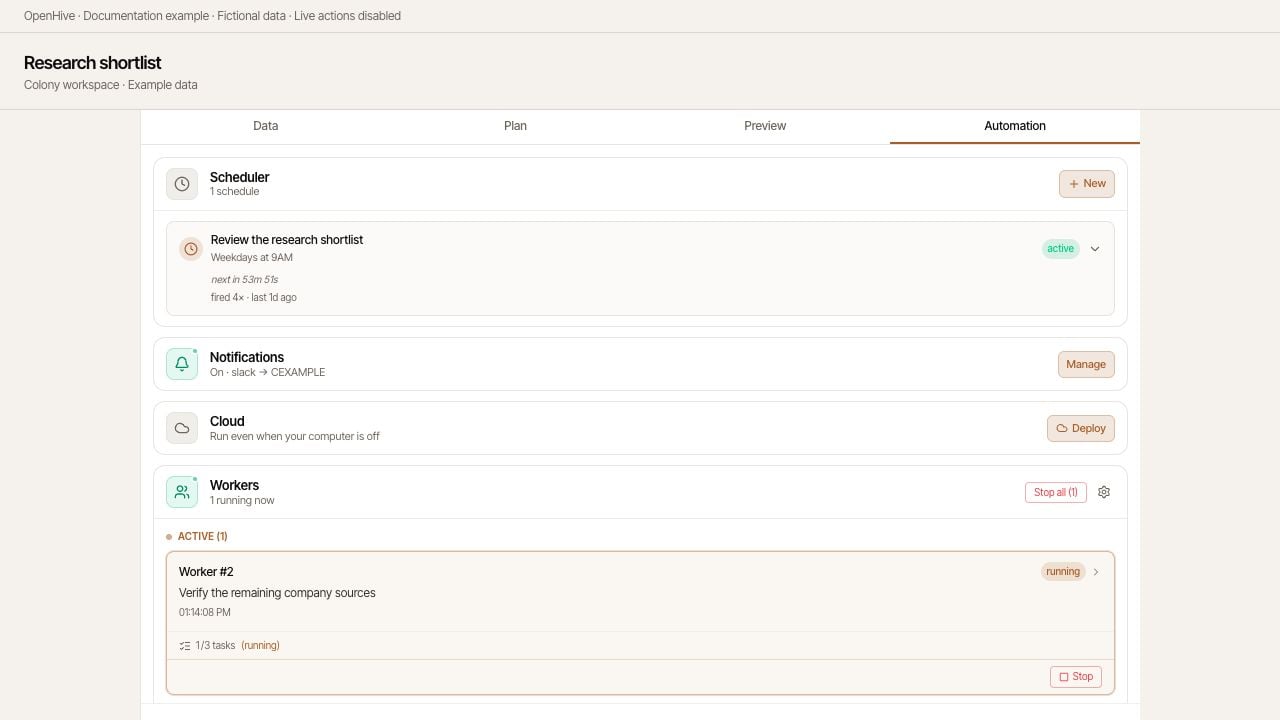
Screenshots show the desktop interface with fictional example data. Names, messages, counts, and connection states are illustrative, not account defaults or evidence of live activity.
Check the Cloud section to understand the colony's execution location.
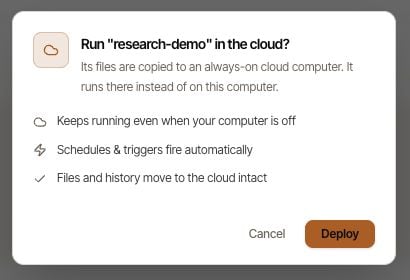
Read the confirmation dialog and confirm the deployment when you are ready.
Wait for upload and deployment to finish. Check that the section reports Running on a cloud computer.
Choose Open to inspect the cloud environment.
Resolve deployment errors before relying on the colony to continue unattended. The availability of cloud computers and upgrades depends on the options offered to your account.
Review the colony and confirmation before running it in the cloud.
A cloud computer is a separate execution environment. Check that the task can access its required files, connected accounts, and browser pages there. Do not assume a website signed in on your laptop is also signed in on the cloud computer.Start with a small verification task before enabling a recurring workflow. For browser automation, inspect the cloud browser directly when login or an interactive step is needed.
The Cloud section exposes advanced controls, including moving the colony back to local execution. After moving it back, keep the desktop runtime available and verify the next run locally.
Desktop execution does not make OpenHive an offline-only product. Cloud services handle account and workspace functions; connected-account credentials can sync to the local runtime; model providers and third-party tools receive the inputs needed to fulfill requests.Choose the connected account deliberately, and keep private information out of a task when it is not needed. For access setup, see Credentials.
{"docsConfig":{"theme":"mint","$schema":"https://mintlify.com/docs.json","name":"OpenHive","description":"Documentation for OpenHive — the desktop app for running agent colonies.","colors":{"primary":"#B5691C","light":"#FABE0A","dark":"#B5691C"},"logo":{"light":"https://mintcdn.com/open-hive/KBnRuZMIKg-Do7q7/logo/light.svg?fit=max\u0026auto=format\u0026n=KBnRuZMIKg-Do7q7\u0026q=85\u0026s=8f01f060000a2934d8eba1cf75bbad73","dark":"https://mintcdn.com/open-hive/KBnRuZMIKg-Do7q7/logo/dark.svg?fit=max\u0026auto=format\u0026n=KBnRuZMIKg-Do7q7\u0026q=85\u0026s=7e541f706344da544c756182caca9700","href":"https://open-hive.com"},"favicon":"https://mintcdn.com/open-hive/KBnRuZMIKg-Do7q7/favicon.svg?fit=max\u0026auto=format\u0026n=KBnRuZMIKg-Do7q7\u0026q=85\u0026s=1718d5156763419a5d21aac3f25306f6","navbar":{"links":[{"href":"https://open-hive.com","label":"Website"},{"href":"https://discord.com/invite/MXE49hrKDk","label":"Discord"}],"primary":{"type":"button","label":"Download","href":"https://open-hive.com"}},"footer":{"socials":{"x":"https://x.com/aden_hq","github":"https://github.com/aden-hive","linkedin":"https://www.linkedin.com/company/teamaden","discord":"https://discord.com/invite/MXE49hrKDk"}},"styling":{"latex":false},"navigation":{"pages":[]}},"deployment":{"deploymentMetadataValue":{"subdomain":"open-hive","hasAudioNarration":false,"actualSubdomain":"open-hive","customDomains":["docs.open-hive.com"],"gitSource":{"type":"github","owner":"aden-hive","repo":"open-hive-docs","deployBranch":"main","contentDirectory":"","isPrivate":true,"mountPath":"","label":""},"chroma":{"latestBuiltDeploymentHistoryId":"6a9dd6a41d75eb55a84c3dc4","collectionId":"5c37c505-4e3c-4a0a-b930-714aa315dd6b","liveDeploymentHistoryId":"6a9dd6a41d75eb55a84c3dc4","schemaVersion":"v3"},"entitlements":{},"buildId":"6a9dd6a41d75eb55a84c3dc4","clientVersion":"0.0.3918","searchFilterCounts":[{"language":"default","tag":"Documentation","count":34},{"language":"default","tag":"Colony workspace","count":6},{"language":"default","tag":"Core concepts","count":6},{"language":"default","tag":"Configuration","count":6},{"language":"default","tag":"Guides","count":6},{"language":"default","tag":"Inbox and senders","count":5},{"language":"default","tag":"Get started","count":4},{"language":"default","tag":"API reference","count":2},{"language":"default","tag":"Overview","count":2},{"language":"default","tag":"Account","count":1}]},"assistantConfig":{"enableAskAiButton":false,"enableStarterQuestions":false,"enableContextualStarterQuestions":false,"enableAskAiSearchBar":true},"hasChatPermissions":false,"hasWebMcpPermissions":false,"toggles":[{"name":"kill-isr","enabled":true,"variant":{"name":"disabled","enabled":false,"feature_enabled":true},"impressionData":false},{"name":"agent-mintlify-slack","enabled":true,"variant":{"name":"disabled","enabled":false,"feature_enabled":true},"impressionData":false},{"name":"editor-v7-file-tree","enabled":true,"variant":{"name":"disabled","enabled":false,"feature_enabled":true},"impressionData":false},{"name":"agent-integrations-settings","enabled":true,"variant":{"name":"disabled","enabled":false,"feature_enabled":true},"impressionData":false},{"name":"automations-pr-grouping","enabled":true,"variant":{"name":"disabled","enabled":false,"feature_enabled":true},"impressionData":false},{"name":"custom-prefix","enabled":true,"variant":{"name":"disabled","enabled":false,"feature_enabled":true},"impressionData":false},{"name":"analytics-v7","enabled":true,"variant":{"name":"disabled","enabled":false,"feature_enabled":true},"impressionData":false},{"name":"user-flows-analytics","enabled":true,"variant":{"name":"disabled","enabled":false,"feature_enabled":true},"impressionData":false},{"name":"no-publish-flow","enabled":true,"variant":{"name":"disabled","enabled":false,"feature_enabled":true},"impressionData":false},{"name":"workos-onboarding","enabled":true,"variant":{"name":"disabled","enabled":false,"feature_enabled":true},"impressionData":false},{"name":"llms-txt-v2","enabled":true,"variant":{"name":"disabled","enabled":false,"feature_enabled":true},"impressionData":false},{"name":"pause-universal-search-reconcile","enabled":true,"variant":{"name":"disabled","enabled":false,"feature_enabled":true},"impressionData":false},{"name":"snapshot-serving-live","enabled":true,"variant":{"name":"disabled","enabled":false,"feature_enabled":true},"impressionData":false},{"name":"stripTemperatureMiddleware","enabled":true,"variant":{"name":"disabled","enabled":false,"feature_enabled":true},"impressionData":false},{"name":"per-site-search-delta","enabled":true,"variant":{"name":"disabled","enabled":false,"feature_enabled":true},"impressionData":false},{"name":"support-platform-pylon-zendesk","enabled":true,"variant":{"name":"disabled","enabled":false,"feature_enabled":true},"impressionData":false},{"name":"editor-branches-v2-autocommit","enabled":true,"variant":{"name":"disabled","enabled":false,"feature_enabled":true},"impressionData":false},{"name":"editor-branches-v2","enabled":true,"variant":{"name":"disabled","enabled":false,"feature_enabled":true},"impressionData":false},{"name":"snapshot-serving","enabled":true,"variant":{"name":"disabled","enabled":false,"feature_enabled":true},"impressionData":false},{"name":"instant-rollback","enabled":true,"variant":{"name":"disabled","enabled":false,"feature_enabled":true},"impressionData":false},{"name":"granular-notifications-server","enabled":true,"variant":{"name":"disabled","enabled":false,"feature_enabled":true},"impressionData":false},{"name":"granular-notifications","enabled":true,"variant":{"name":"disabled","enabled":false,"feature_enabled":true},"impressionData":false},{"name":"editor-private-page-search","enabled":true,"variant":{"name":"disabled","enabled":false,"feature_enabled":true},"impressionData":false},{"name":"automations-fable","enabled":true,"variant":{"name":"disabled","enabled":false,"feature_enabled":true},"impressionData":false},{"name":"fixed-ai-action-pricing","enabled":true,"variant":{"name":"disabled","enabled":false,"feature_enabled":true},"impressionData":false},{"name":"automation-resolve-merge-conflict","enabled":true,"variant":{"name":"disabled","enabled":false,"feature_enabled":true},"impressionData":false},{"name":"scoped-publishing","enabled":true,"variant":{"name":"disabled","enabled":false,"feature_enabled":true},"impressionData":false},{"name":"mintql","enabled":true,"variant":{"name":"disabled","enabled":false,"feature_enabled":true},"impressionData":false},{"name":"page-level-analytics","enabled":true,"variant":{"name":"disabled","enabled":false,"feature_enabled":true},"impressionData":false},{"name":"teamspace","enabled":true,"variant":{"name":"disabled","enabled":false,"feature_enabled":true},"impressionData":false},{"name":"editor-version-history-v2","enabled":true,"variant":{"name":"disabled","enabled":false,"feature_enabled":true},"impressionData":false},{"name":"editor-nav-generations","enabled":true,"variant":{"name":"disabled","enabled":false,"feature_enabled":true},"impressionData":false},{"name":"billing-page-v2","enabled":true,"variant":{"name":"disabled","enabled":false,"feature_enabled":true},"impressionData":false},{"name":"vite-origin","enabled":true,"variant":{"name":"disabled","enabled":false,"feature_enabled":true},"impressionData":false},{"name":"workspace-projects","enabled":true,"variant":{"name":"disabled","enabled":false,"feature_enabled":true},"impressionData":false},{"name":"assistant-v5","enabled":true,"variant":{"name":"disabled","enabled":false,"feature_enabled":true},"impressionData":false},{"name":"byok-sep-25","enabled":true,"variant":{"name":"disabled","enabled":false,"feature_enabled":true},"impressionData":false},{"name":"fork-pr-previews","enabled":true,"variant":{"name":"disabled","enabled":false,"feature_enabled":true},"impressionData":false},{"name":"revalidation-jwt","enabled":true,"variant":{"name":"disabled","enabled":false,"feature_enabled":true},"impressionData":false},{"name":"editor-agent-model-picker","enabled":true,"variant":{"name":"disabled","enabled":false,"feature_enabled":true},"impressionData":false},{"name":"client-snapshot-docs-config","enabled":true,"variant":{"name":"disabled","enabled":false,"feature_enabled":true},"impressionData":false},{"name":"hobby-abuse-scan","enabled":true,"variant":{"name":"disabled","enabled":false,"feature_enabled":true},"impressionData":false},{"name":"dashboard-inbox","enabled":true,"variant":{"name":"disabled","enabled":false,"feature_enabled":true},"impressionData":false}],"isAtlas":false,"googleFontsInlined":false},"customCss":[],"page":{"pagePath":"guides/local-and-cloud","slug":"/guides/local-and-cloud","pageMetadata":{"title":"Local and cloud work","description":"Choose where a colony runs and verify its environment before leaving it unattended.","href":"/guides/local-and-cloud"},"description":{"compiledSource":"\"use strict\";\nconst {jsx: _jsx} = arguments[0];\nconst {useMDXComponents: _provideComponents} = arguments[0];\nfunction _createMdxContent(props) {\n const _components = {\n p: \"p\",\n ..._provideComponents(),\n ...props.components\n };\n return _jsx(_components.p, {\n children: \"Choose where a colony runs and verify its environment before leaving it unattended.\"\n });\n}\nfunction MDXContent(props = {}) {\n const {wrapper: MDXLayout} = {\n ..._provideComponents(),\n ...props.components\n };\n return MDXLayout ? _jsx(MDXLayout, {\n ...props,\n children: _jsx(_createMdxContent, {\n ...props\n })\n }) : _createMdxContent(props);\n}\nreturn {\n default: MDXContent\n};\n","frontmatter":{},"scope":{}},"pageType":"default","mdx":{"mdxSource":{"compiledSource":"\"use strict\";const{Fragment:_Fragment,jsx:_jsx,jsxs:_jsxs}=arguments[0];const{useMDXComponents:_provideComponents}=arguments[0];function _createMdxContent(props){const _components={a:`a`,li:`li`,ol:`ol`,p:`p`,strong:`strong`,tbody:`tbody`,td:`td`,th:`th`,thead:`thead`,tr:`tr`,..._provideComponents(),...props.components},{Frame,Heading,Note,OptimizedImage,Table}=_components;if(!Frame)_missingMdxReference(`Frame`,true);if(!Heading)_missingMdxReference(`Heading`,true);if(!Note)_missingMdxReference(`Note`,true);if(!OptimizedImage)_missingMdxReference(`OptimizedImage`,true);if(!Table)_missingMdxReference(`Table`,true);return _jsxs(_Fragment,{children:[_jsx(_components.p,{children:`OpenHive can execute a colony on your computer or on a cloud computer. Choose based on where the task’s files, browser session, and connected services are available.`}),`\n`,_jsxs(Table,{children:[_jsx(_components.thead,{children:_jsxs(_components.tr,{children:[_jsx(_components.th,{}),_jsx(_components.th,{children:`Local execution`}),_jsx(_components.th,{children:`Cloud execution`})]})}),_jsxs(_components.tbody,{children:[_jsxs(_components.tr,{children:[_jsx(_components.td,{children:`Where work runs`}),_jsx(_components.td,{children:`The runtime started by the desktop app`}),_jsx(_components.td,{children:`A cloud computer after deployment`})]}),_jsxs(_components.tr,{children:[_jsx(_components.td,{children:`Your computer`}),_jsx(_components.td,{children:`Keep it awake, connected, and running OpenHive`}),_jsx(_components.td,{children:`The colony can run while your computer is off`})]}),_jsxs(_components.tr,{children:[_jsx(_components.td,{children:`Browser access`}),_jsx(_components.td,{children:`Your connected local browser bridge`}),_jsx(_components.td,{children:`Check the browser and sign-in state in the cloud view`})]}),_jsxs(_components.tr,{children:[_jsx(_components.td,{children:`How to inspect`}),_jsx(_components.td,{children:`Colony chat and workspace`}),_jsxs(_components.td,{children:[`Colony status and the Cloud section’s `,_jsx(_components.strong,{children:`Open`}),` control`]})]})]})]}),`\n`,_jsx(Note,{children:_jsx(_components.p,{children:`Screenshots show the desktop interface with fictional example data. Names, messages, counts, and connection states are illustrative, not account defaults or evidence of live activity.`})}),`\n`,_jsx(Frame,{caption:`Check the Cloud section to understand the colony's execution location.`,children:_jsx(OptimizedImage,{src:`https://mintcdn.com/open-hive/pgmm5ty3-3Z8tA3I/images/colony-automation-overview.jpg?fit=max\u0026auto=format\u0026n=pgmm5ty3-3Z8tA3I\u0026q=85\u0026s=7df1a3e2f64c11372f15f40bbdf247c1`,alt:`Check the Cloud section to understand the colony's execution location.`,\"data-og-width\":`1280`,width:`1280`,\"data-og-height\":`720`,height:`720`,\"data-path\":`images/colony-automation-overview.jpg`,\"data-optimize\":`true`,\"data-opv\":`3`,srcset:`https://mintcdn.com/open-hive/pgmm5ty3-3Z8tA3I/images/colony-automation-overview.jpg?w=280\u0026fit=max\u0026auto=format\u0026n=pgmm5ty3-3Z8tA3I\u0026q=85\u0026s=48717377ed6f96b2ad8467206070165a 280w, https://mintcdn.com/open-hive/pgmm5ty3-3Z8tA3I/images/colony-automation-overview.jpg?w=560\u0026fit=max\u0026auto=format\u0026n=pgmm5ty3-3Z8tA3I\u0026q=85\u0026s=ceedb4e5e5f19f6e4153de373c3f7602 560w, https://mintcdn.com/open-hive/pgmm5ty3-3Z8tA3I/images/colony-automation-overview.jpg?w=840\u0026fit=max\u0026auto=format\u0026n=pgmm5ty3-3Z8tA3I\u0026q=85\u0026s=860f59d3bf1f2c73a590256b0204013f 840w, https://mintcdn.com/open-hive/pgmm5ty3-3Z8tA3I/images/colony-automation-overview.jpg?w=1100\u0026fit=max\u0026auto=format\u0026n=pgmm5ty3-3Z8tA3I\u0026q=85\u0026s=7ed4ca5a55783760a8f98f3e93e0b44a 1100w, https://mintcdn.com/open-hive/pgmm5ty3-3Z8tA3I/images/colony-automation-overview.jpg?w=1650\u0026fit=max\u0026auto=format\u0026n=pgmm5ty3-3Z8tA3I\u0026q=85\u0026s=fc03e26a01a84a653bdd38ca2f710087 1650w, https://mintcdn.com/open-hive/pgmm5ty3-3Z8tA3I/images/colony-automation-overview.jpg?w=2500\u0026fit=max\u0026auto=format\u0026n=pgmm5ty3-3Z8tA3I\u0026q=85\u0026s=588e4f45904ef34078ffb1b58eeadb45 2500w`})}),`\n`,_jsx(Heading,{level:`2`,id:`deploy-a-colony`,children:`Deploy a colony`}),`\n`,_jsxs(_components.ol,{children:[`\n`,_jsx(_components.li,{children:`Run a small task locally and confirm its output.`}),`\n`,_jsxs(_components.li,{children:[`Open the colony’s `,_jsx(_components.strong,{children:`Automation`}),` tab.`]}),`\n`,_jsxs(_components.li,{children:[`In `,_jsx(_components.strong,{children:`Cloud`}),`, select `,_jsx(_components.strong,{children:`Deploy`}),`.`]}),`\n`,_jsx(_components.li,{children:`Read the confirmation dialog and confirm the deployment when you are ready.`}),`\n`,_jsxs(_components.li,{children:[`Wait for upload and deployment to finish. Check that the section reports `,_jsx(_components.strong,{children:`Running on a cloud computer`}),`.`]}),`\n`,_jsxs(_components.li,{children:[`Choose `,_jsx(_components.strong,{children:`Open`}),` to inspect the cloud environment.`]}),`\n`]}),`\n`,_jsx(_components.p,{children:`Resolve deployment errors before relying on the colony to continue unattended. The availability of cloud computers and upgrades depends on the options offered to your account.`}),`\n`,_jsx(Frame,{caption:`Review the colony and confirmation before running it in the cloud.`,children:_jsx(OptimizedImage,{src:`https://mintcdn.com/open-hive/pgmm5ty3-3Z8tA3I/images/colony-cloud-confirmation.jpg?fit=max\u0026auto=format\u0026n=pgmm5ty3-3Z8tA3I\u0026q=85\u0026s=429c0c772e8e43786d5fb23135d210ed`,alt:`Review the colony and confirmation before running it in the cloud.`,\"data-og-width\":`410`,width:`410`,\"data-og-height\":`280`,height:`280`,\"data-path\":`images/colony-cloud-confirmation.jpg`,\"data-optimize\":`true`,\"data-opv\":`3`,srcset:`https://mintcdn.com/open-hive/pgmm5ty3-3Z8tA3I/images/colony-cloud-confirmation.jpg?w=280\u0026fit=max\u0026auto=format\u0026n=pgmm5ty3-3Z8tA3I\u0026q=85\u0026s=3a4e7abf495cba4145bfea3a1f7718b3 280w, https://mintcdn.com/open-hive/pgmm5ty3-3Z8tA3I/images/colony-cloud-confirmation.jpg?w=560\u0026fit=max\u0026auto=format\u0026n=pgmm5ty3-3Z8tA3I\u0026q=85\u0026s=18df305801708727873937ccfb2bbfe4 560w, https://mintcdn.com/open-hive/pgmm5ty3-3Z8tA3I/images/colony-cloud-confirmation.jpg?w=840\u0026fit=max\u0026auto=format\u0026n=pgmm5ty3-3Z8tA3I\u0026q=85\u0026s=47df5fa23e3a424cbea8aab546937f2d 840w, https://mintcdn.com/open-hive/pgmm5ty3-3Z8tA3I/images/colony-cloud-confirmation.jpg?w=1100\u0026fit=max\u0026auto=format\u0026n=pgmm5ty3-3Z8tA3I\u0026q=85\u0026s=0fc83ec1d7b2a84b52fa377273921e44 1100w, https://mintcdn.com/open-hive/pgmm5ty3-3Z8tA3I/images/colony-cloud-confirmation.jpg?w=1650\u0026fit=max\u0026auto=format\u0026n=pgmm5ty3-3Z8tA3I\u0026q=85\u0026s=6e812a9f88fa537ca2586efd0b567453 1650w, https://mintcdn.com/open-hive/pgmm5ty3-3Z8tA3I/images/colony-cloud-confirmation.jpg?w=2500\u0026fit=max\u0026auto=format\u0026n=pgmm5ty3-3Z8tA3I\u0026q=85\u0026s=971dcb7774058a9d1015144d4e7c007d 2500w`})}),`\n`,_jsx(Heading,{level:`2`,id:`check-access-after-deployment`,children:`Check access after deployment`}),`\n`,_jsx(_components.p,{children:`A cloud computer is a separate execution environment. Check that the task can access its required files, connected accounts, and browser pages there. Do not assume a website signed in on your laptop is also signed in on the cloud computer.`}),`\n`,_jsx(_components.p,{children:`Start with a small verification task before enabling a recurring workflow. For browser automation, inspect the cloud browser directly when login or an interactive step is needed.`}),`\n`,_jsx(Heading,{level:`2`,id:`move-work-back-to-your-computer`,children:`Move work back to your computer`}),`\n`,_jsxs(_components.p,{children:[`The `,_jsx(_components.strong,{children:`Cloud`}),` section exposes advanced controls, including moving the colony back to local execution. After moving it back, keep the desktop runtime available and verify the next run locally.`]}),`\n`,_jsx(Heading,{level:`2`,id:`understand-the-data-boundary`,children:`Understand the data boundary`}),`\n`,_jsx(_components.p,{children:`Desktop execution does not make OpenHive an offline-only product. Cloud services handle account and workspace functions; connected-account credentials can sync to the local runtime; model providers and third-party tools receive the inputs needed to fulfill requests.`}),`\n`,_jsxs(_components.p,{children:[`Choose the connected account deliberately, and keep private information out of a task when it is not needed. For access setup, see `,_jsx(_components.a,{href:`/configuration/credentials`,children:`Credentials`}),`.`]})]})}function MDXContent(props={}){const{wrapper:MDXLayout}={..._provideComponents(),...props.components};return MDXLayout?_jsx(MDXLayout,{...props,children:_jsx(_createMdxContent,{...props})}):_createMdxContent(props)}return{default:MDXContent};function _missingMdxReference(id,component){throw new Error(`Expected `+(component?`component`:`object`)+\" `\"+id+\"` to be defined: you likely forgot to import, pass, or provide it.\")}","frontmatter":{},"scope":{"config":{},"pageMetadata":{"title":"Local and cloud work","description":"Choose where a colony runs and verify its environment before leaving it unattended.","href":"/guides/local-and-cloud"}}},"mdxSourceWithNoJs":null},"mdxExtracts":{"tableOfContents":[{"title":"Deploy a colony","slug":"deploy-a-colony","depth":2,"children":[]},{"title":"Check access after deployment","slug":"check-access-after-deployment","depth":2,"children":[]},{"title":"Move work back to your computer","slug":"move-work-back-to-your-computer","depth":2,"children":[]},{"title":"Understand the data boundary","slug":"understand-the-data-boundary","depth":2,"children":[]}],"codeExamples":{}},"jsLinks":[],"subdomain":"open-hive","siteName":"OpenHive","title":"Local and cloud work - OpenHive","navMaps":{"firstHrefInVersion":{},"firstHrefInLanguage":{}},"lastModified":"2026-09-06T20:45:41.652Z","originalFileLocation":"guides/local-and-cloud.mdx"},"headHtml":"\u003cscript data-mint-head>(function(){var d=document.documentElement,p=null;if(!p){try{p=localStorage.getItem(\"isDarkMode\")}catch(e){}if(p==='true')p='dark';else if(p==='false')p='light';if(p!=='light'\u0026\u0026p!=='dark'\u0026\u0026p!=='system')p=\"system\"}var r=p==='system'?(matchMedia(\"(prefers-color-scheme: dark)\").matches?'dark':'light'):p;d.classList.remove(r==='dark'?'light':'dark');d.classList.add(r);d.setAttribute(\"data-theme-preference\",p)})();\u003c/script>\u003cmeta data-mint-head name=\"description\" content=\"Choose where a colony runs and verify its environment before leaving it unattended.\">\u003cmeta data-mint-head name=\"application-name\" content=\"OpenHive\">\u003cmeta data-mint-head name=\"generator\" content=\"Mintlify\">\u003clink data-mint-head rel=\"icon\" type=\"image/png\" sizes=\"192x192\" href=\"/mintlify-assets/_mintlify/favicons/open-hive/cyvY73COFAppaB9_/_generated/favicon/android-chrome-192x192.png\" media=\"(prefers-color-scheme: light)\">\u003clink data-mint-head rel=\"apple-touch-icon\" type=\"image/png\" sizes=\"180x180\" href=\"/mintlify-assets/_mintlify/favicons/open-hive/cyvY73COFAppaB9_/_generated/favicon/apple-touch-icon.png\">\u003clink data-mint-head rel=\"icon\" type=\"image/png\" sizes=\"16x16\" href=\"/mintlify-assets/_mintlify/favicons/open-hive/cyvY73COFAppaB9_/_generated/favicon/favicon-16x16.png\" media=\"(prefers-color-scheme: light)\">\u003clink data-mint-head rel=\"icon\" type=\"image/png\" sizes=\"32x32\" href=\"/mintlify-assets/_mintlify/favicons/open-hive/cyvY73COFAppaB9_/_generated/favicon/favicon-32x32.png\" media=\"(prefers-color-scheme: light)\">\u003clink data-mint-head rel=\"shortcut icon\" type=\"image/x-icon\" href=\"/mintlify-assets/_mintlify/favicons/open-hive/cyvY73COFAppaB9_/_generated/favicon/favicon.ico\" media=\"(prefers-color-scheme: light)\">\u003clink data-mint-head rel=\"icon\" type=\"image/png\" sizes=\"192x192\" href=\"/mintlify-assets/_mintlify/favicons/open-hive/cyvY73COFAppaB9_/_generated/favicon-dark/android-chrome-192x192.png\" media=\"(prefers-color-scheme: dark)\">\u003clink data-mint-head rel=\"icon\" type=\"image/png\" sizes=\"16x16\" href=\"/mintlify-assets/_mintlify/favicons/open-hive/cyvY73COFAppaB9_/_generated/favicon-dark/favicon-16x16.png\" media=\"(prefers-color-scheme: dark)\">\u003clink data-mint-head rel=\"icon\" type=\"image/png\" sizes=\"32x32\" href=\"/mintlify-assets/_mintlify/favicons/open-hive/cyvY73COFAppaB9_/_generated/favicon-dark/favicon-32x32.png\" media=\"(prefers-color-scheme: dark)\">\u003clink data-mint-head rel=\"shortcut icon\" type=\"image/x-icon\" href=\"/mintlify-assets/_mintlify/favicons/open-hive/cyvY73COFAppaB9_/_generated/favicon-dark/favicon.ico\" media=\"(prefers-color-scheme: dark)\">\u003cmeta data-mint-head property=\"og:title\" content=\"Local and cloud work - OpenHive\">\u003cmeta data-mint-head property=\"og:description\" content=\"Choose where a colony runs and verify its environment before leaving it unattended.\">\u003cmeta data-mint-head property=\"og:site_name\" content=\"OpenHive\">\u003cmeta data-mint-head property=\"og:url\" content=\"https://docs.open-hive.com/guides/local-and-cloud\">\u003cmeta data-mint-head property=\"og:type\" content=\"website\">\u003cmeta data-mint-head property=\"og:image\" content=\"https://open-hive.mintlify.app/_mintlify/api/og/v2?division=Colony+workspace\u0026amp;title=Local+and+cloud+work\u0026amp;description=Choose+where+a+colony+runs+and+verify+its+environment+before+leaving+it+unattended.\u0026amp;theme=da4fbb89f39eea3049fa93a6\u0026amp;signature=c15acf8a14ca5112dfe67deaf2fd564a67932ae01fdf708174e04270193d0d52\">\u003cmeta data-mint-head property=\"og:image:width\" content=\"1200\">\u003cmeta data-mint-head property=\"og:image:height\" content=\"630\">\u003cmeta data-mint-head name=\"twitter:card\" content=\"summary_large_image\">\u003cmeta data-mint-head name=\"twitter:title\" content=\"Local and cloud work - OpenHive\">\u003cmeta data-mint-head name=\"twitter:description\" content=\"Choose where a colony runs and verify its environment before leaving it unattended.\">\u003cmeta data-mint-head name=\"twitter:image\" content=\"https://open-hive.mintlify.app/_mintlify/api/og/v2?division=Colony+workspace\u0026amp;title=Local+and+cloud+work\u0026amp;description=Choose+where+a+colony+runs+and+verify+its+environment+before+leaving+it+unattended.\u0026amp;theme=da4fbb89f39eea3049fa93a6\u0026amp;signature=c15acf8a14ca5112dfe67deaf2fd564a67932ae01fdf708174e04270193d0d52\">\u003cmeta data-mint-head name=\"twitter:image:width\" content=\"1200\">\u003cmeta data-mint-head name=\"twitter:image:height\" content=\"630\">\u003cmeta data-mint-head name=\"msapplication-config\" content=\"/mintlify-assets/_mintlify/favicons/open-hive/cyvY73COFAppaB9_/_generated/favicon/browserconfig.xml\">\u003cmeta data-mint-head name=\"apple-mobile-web-app-title\" content=\"OpenHive\">\u003cmeta data-mint-head name=\"msapplication-TileColor\" content=\"#B5691C\">\u003clink data-mint-head rel=\"canonical\" href=\"https://docs.open-hive.com/guides/local-and-cloud\">\u003clink data-mint-head rel=\"alternate\" type=\"application/xml\" href=\"/sitemap.xml\">\u003clink data-mint-head rel=\"alternate\" type=\"text/markdown\" href=\"/guides/local-and-cloud.md\">\u003cscript data-mint-head type=\"application/ld+json\">{\"@context\":\"https://schema.org\",\"@graph\":[{\"@type\":\"Organization\",\"@id\":\"https://docs.open-hive.com/#organization\",\"name\":\"OpenHive\",\"url\":\"https://docs.open-hive.com\",\"logo\":{\"@type\":\"ImageObject\",\"url\":\"https://mintcdn.com/open-hive/KBnRuZMIKg-Do7q7/logo/light.svg?fit=max\u0026auto=format\u0026n=KBnRuZMIKg-Do7q7\u0026q=85\u0026s=8f01f060000a2934d8eba1cf75bbad73\"}},{\"@type\":\"WebSite\",\"@id\":\"https://docs.open-hive.com#website\",\"name\":\"OpenHive\",\"url\":\"https://docs.open-hive.com\",\"publisher\":{\"@id\":\"https://docs.open-hive.com/#organization\"}},{\"@type\":\"WebPage\",\"@id\":\"https://docs.open-hive.com/guides/local-and-cloud#webpage\",\"url\":\"https://docs.open-hive.com/guides/local-and-cloud\",\"name\":\"Local and cloud work\",\"description\":\"Choose where a colony runs and verify its environment before leaving it unattended.\",\"dateModified\":\"2026-09-06T20:45:41.652Z\",\"isPartOf\":{\"@id\":\"https://docs.open-hive.com#website\"},\"breadcrumb\":{\"@id\":\"https://docs.open-hive.com/guides/local-and-cloud#breadcrumb\"}},{\"@type\":\"BreadcrumbList\",\"@id\":\"https://docs.open-hive.com/guides/local-and-cloud#breadcrumb\",\"itemListElement\":[{\"@type\":\"ListItem\",\"position\":1,\"name\":\"Colony workspace\",\"item\":\"https://docs.open-hive.com/guides/colony-workspace\"},{\"@type\":\"ListItem\",\"position\":2,\"name\":\"Local and cloud work\",\"item\":\"https://docs.open-hive.com/guides/local-and-cloud\"}]},{\"@type\":[\"Article\",\"TechArticle\"],\"@id\":\"https://docs.open-hive.com/guides/local-and-cloud#article\",\"headline\":\"Local and cloud work\",\"name\":\"Local and cloud work\",\"description\":\"Choose where a colony runs and verify its environment before leaving it unattended.\",\"url\":\"https://docs.open-hive.com/guides/local-and-cloud\",\"mainEntityOfPage\":{\"@id\":\"https://docs.open-hive.com/guides/local-and-cloud#webpage\"},\"dateModified\":\"2026-09-06T20:45:41.652Z\",\"publisher\":{\"@id\":\"https://docs.open-hive.com/#organization\"},\"isPartOf\":{\"@id\":\"https://docs.open-hive.com#website\"}}]}\u003c/script>\u003cscript data-mint-head type=\"application/ld+json\">{\"@context\":\"https://schema.org\",\"@type\":\"WebSite\",\"name\":\"OpenHive\",\"creator\":{\"@type\":\"Organization\",\"name\":\"Mintlify\",\"url\":\"https://mintlify.com\"}}\u003c/script>","siteName":"OpenHive","nav":{"global":null,"tabs":[{"tab":"Documentation","groups":[{"group":"Get started","pages":[{"title":"OpenHive","href":""},{"title":"Your first task","href":"/quickstart"},{"title":"Installation","href":"/installation"},{"title":"Troubleshooting","href":"/troubleshooting"}]},{"group":"Core concepts","pages":[{"title":"How OpenHive organizes work","href":"/concepts/overview"},{"title":"Colonies","href":"/concepts/colonies"},{"title":"Queens","href":"/concepts/queens"},{"title":"Sessions and progress","href":"/concepts/sessions"},{"title":"Skills and tools","href":"/concepts/skills"},{"title":"Memory","href":"/concepts/memory"}]},{"group":"Colony workspace","pages":[{"title":"Working in a colony","href":"/guides/colony-workspace"},{"title":"Data: inspect and export results","href":"/colony/data"},{"title":"Plan: tasks, blockers, and history","href":"/colony/plan"},{"title":"Automation: run and supervise work","href":"/colony/automation"},{"title":"Schedule recurring work","description":"Create daily, weekly, interval, or UTC cron schedules and verify each run.","href":"/guides/scheduling"},{"title":"Local and cloud work","href":"/guides/local-and-cloud"}]},{"group":"Inbox and senders","pages":[{"title":"Email: inboxes, accounts, and profiles","description":"Understand the email workspace and set up a complete send-and-reply workflow.","href":"/email/overview"},{"title":"Inboxes: sync and find conversations","sidebarTitle":"Inboxes","href":"/guides/inbox"},{"title":"Delivery accounts: connect a sender","sidebarTitle":"Delivery accounts","href":"/configuration/senders"},{"title":"Sending profiles: names and signatures","href":"/email/sending-profiles"},{"title":"Draft, preview, and send a reply","href":"/email/replying"}]},{"group":"Guides","pages":[{"title":"Write a useful task brief","href":"/guides/task-briefs"},{"title":"Find and qualify prospects","href":"/guides/first-colony"},{"title":"Foundry","href":"/guides/foundry"},{"title":"Use and customize prompts","href":"/guides/prompt-library"},{"title":"CRM","href":"/guides/crm"},{"title":"Connect your browser","href":"/guides/browser"}]},{"group":"Configuration","pages":[{"title":"Connect accounts and API keys","href":"/configuration/credentials"},{"title":"Set action limits","href":"/configuration/rate-limits"},{"title":"Manage skills and tools","href":"/configuration/skills-library"},{"title":"Memory library","href":"/configuration/memory-library"},{"title":"Org chart","href":"/configuration/org-chart"},{"title":"Settings and workspace","href":"/configuration/settings"}]},{"group":"Account","pages":[{"title":"Credits and model access","href":"/account/credits"}]}]},{"tab":"API reference","pages":[{"title":"API reference","href":"/api-reference/introduction"}]}]},"title":"Local and cloud work - OpenHive","buildId":"dpl_22zLaHtK6fmmSqApXTTP5tC7UBZn","deploymentId":"dpl_22zLaHtK6fmmSqApXTTP5tC7UBZn","dynamics":["07c022d89b","a74be98ba7"],"chunks":["Frame-Qhh4ynaL.js","DynamicMarkdown-UgxZIUya.js","zoom-image-lightbox-BxIiCHya.js","PlusIcon-Br4qdG7I.js","lightbox-handle-r17bVUz3.js"]}